
How to Check and Maintain Your Android Battery Health
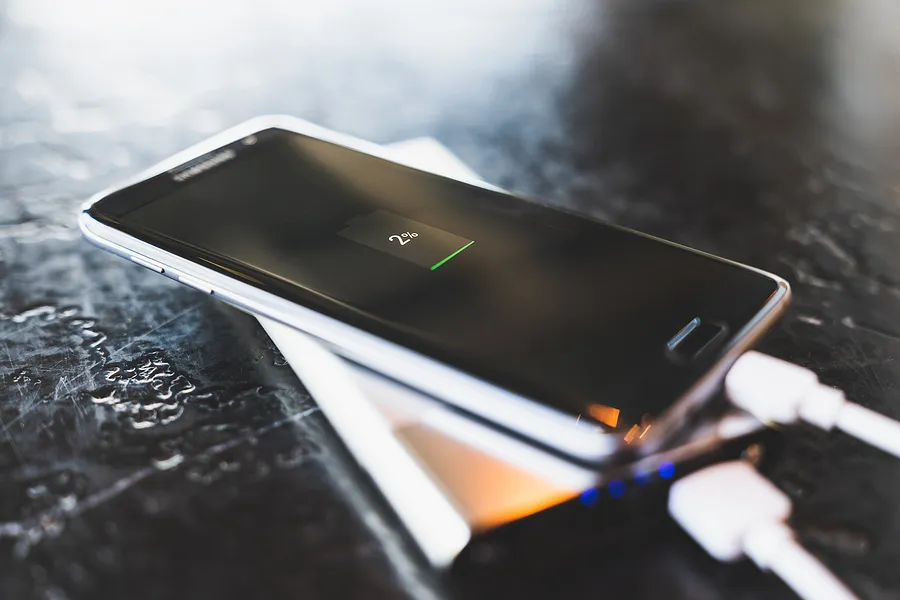
Do you feel like your Android battery health is depleting? You're not alone. The performance of your phone's battery naturally declines over time. Keeping track of your Android battery health is essential for ensuring the longevity of your device. From diagnosing potential issues to implementing best practices, understanding your battery health can make a big difference. Here’s a comprehensive guide to checking, monitoring, and improving your Android battery health.
What is Android Battery Health?
Android battery health refers to the overall condition and capacity of your phone’s battery. Batteries degrade over time as they complete charge cycles, which are counted when your phone charges from 0% to 100%. Most modern Android phones use lithium-ion or lithium-polymer batteries, which last between 300 and 500 cycles before their capacity diminishes.
For example, when a phone is brand new, its battery is at 100% health. This means it can hold its full designed capacity of energy. After a few years of use, the battery might degrade to 90% health, only holding 90% of its original capacity. A phone with a 4,000mAh (milliampere-hours) battery capacity at 100% health might only hold 3,600mAh after a few years of use. This reduction means less screen time and more frequent charging. Battery health can help you decide when it’s time for a replacement and adjust your usage habits to extend battery life.
How to Check Android Battery Health
Android devices don’t offer a built-in battery health feature in all models, but there are several ways to check your battery’s status:
Through the Settings Menu
Most Android phones provide basic battery information through the settings app:
- Open the Settings app.
- Navigate to Battery (or search for it in the settings search bar).
- Tap **Battery Usage** to view which apps and features are consuming the most power.
Some Samsung phones go a step further with the Samsung Members app:
- Open Samsung Members.
- Navigate to the Diagnostics section
- Select Battery Status to check health indicators like charging capacity and whether the battery is operating normally.
Using Secret Dial Codes
Android phones come with diagnostic tools accessible via dial codes:
- Open the Phone app and dial *#*#4636#*#*
- Tap Battery Information to see an overview of your battery’s status, including health and temperature.
Not all Android phones support this code, so check your manufacturer’s documentation if this doesn’t work.
With a Third-Party App
Apps like AccuBattery, Battery Guru, and DevCheck offer detailed insights into your battery health. For AccuBattery:
- Download AccuBattery from the Google Play Store.
- Open the app and navigate to the Health tab.
- Check your battery’s estimated health percentage and compare its current capacity to its original design capacity.
AccuBattery also tracks charging habits and battery wear, offering actionable tips to prolong battery life.
Device History Reports
For used phones, tools like Phonecheck provide a complete history report, including battery health. This is especially useful for buyers and sellers in the secondhand market.
Signs of a Failing Android Battery
Knowing the symptoms of a deteriorating battery can help you act quickly:
- Rapid Drainage: The battery dies faster than usual, even with minimal usage.
- Overheating: Your phone feels hot during regular use or charging.
- Swelling: A bulging battery could damage your phone and poses a safety risk.
- Dependence on Charger: The phone only works when plugged in.
- Random Shutdowns: The device shuts off even when it shows sufficient charge.
If you notice these signs, consider replacing the battery to avoid further issues.
10 Tips to Extend Android Battery Health
To slow down the natural wear and tear of your battery, follow these tips:
- Avoid Full Charges: Keep your battery level between 20% and 80% for optimal health.
- Turn Off Unnecessary Features: Disable WiFi, Bluetooth, and GPS when not in use.
- Use Original Chargers: Stick to certified chargers to avoid overvoltage or overheating.
- Adjust Display Settings: Reduce screen brightness and limit auto-lock time.
- Avoid Extreme Temperatures: Keep your phone cool, especially during charging.
- Enable Battery Saver Mode: Activate this mode when running low on power.
- Update Apps and Software: Newer versions often come with better power management features.
- Avoid Overnight Charging: Unplug your phone when it’s fully charged.
- Close Background Apps: Prevent unnecessary apps from draining power.
- Limit High-Drain Activities: Minimize gaming or streaming for extended periods.
When to Replace Your Android Battery
A battery health below 80% generally signals the need for a replacement. If your phone is showing symptoms of battery failure and no software updates or settings adjustments help, replacing the battery can restore performance.
Key Takeaways
Monitoring your Android battery health is crucial for maintaining your phone’s performance and longevity. Whether you’re using built-in tools, third-party apps, or a device history report, staying informed helps you make smarter decisions. By adopting better charging habits and regularly checking battery health, you can extend your phone’s usability and reduce replacements.
If you’re buying or selling a used Android phone, consider using services like Phonecheck. Phonecheck will give you a detailed report of the device’s condition, including its battery health. This ensures transparency and peace of mind for both buyers and sellers.
A healthy battery equals a happy phone — and a less stressful digital life!