
How to Check WiFi Strength on Any Device (iPhone, Android, Laptop)
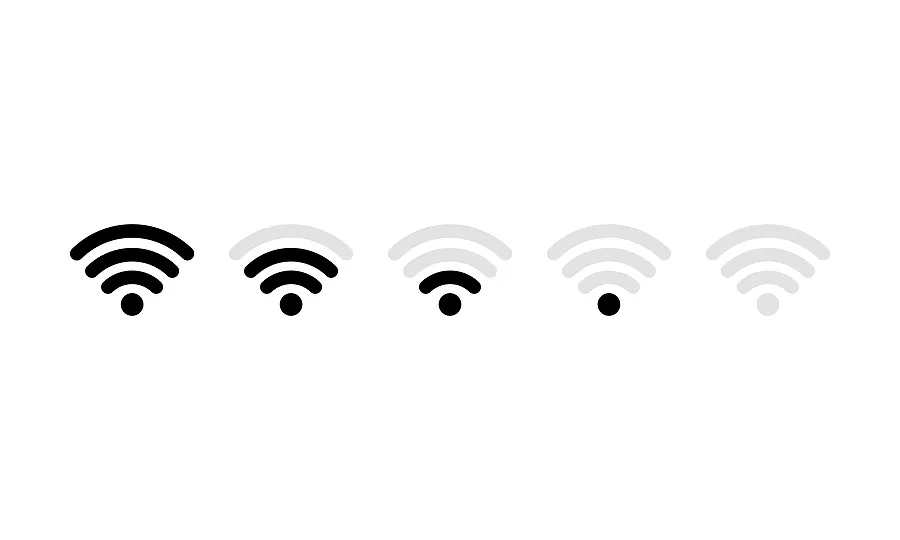
A reliable internet connection depends on more than just your router or service provider—it’s also about WiFi strength. Weak WiFi can lead to dropped video calls, slow downloads, and buffering during your favorite shows. Whether you’re troubleshooting a sluggish connection or optimizing your workspace setup, understanding how to check WiFi strength on your device is essential.
What Is WiFi Strength?
WiFi strength refers to the quality of your wireless signal between your device and the router. It’s typically measured in decibel milliwatts (dBm), where higher (less negative) numbers indicate a stronger signal. For example:
- –30 dBm: Excellent signal (perfect for streaming and online gaming)
- –50 dBm to –60 dBm: Good signal
- –70 dBm: Fair, may cause slow speeds
- –80 dBm or below: Weak, often disconnects
Several factors can affect WiFi strength, including:
- The distance between your device and the router
- Physical barriers (walls, doors, floors)
- Interference from other electronic devices
- The router’s placement and antenna position
Knowing how to check your signal can help pinpoint the problem and guide you to a stronger connection.
How to Check WiFi Strength on iPhone
Apple makes it easy to get a basic sense of your WiFi connection—though you’ll need a small trick to see more detailed information.
Option 1: Quick visual check
- Open Settings → Wi-Fi.
- Look at the signal bars next to your connected network. More bars mean better strength.
Option 2: Use the Field Test Mode
If you want the technical reading in dBm:
- Open the Phone app and dial *3001#12345#*, then tap Call.
- This opens Field Test Mode.
- Tap the Wi-Fi or Measurements section, depending on your iOS version.
- Look for the “RSSI” (Received Signal Strength Indicator) number—this is your strength value.
Anything between –30 dBm and –60 dBm is ideal for strong connectivity. If it’s closer to –80 dBm, you may need to move closer to the router or adjust its position.
How to Check WiFi Strength on Android
Android devices give you several convenient ways to test WiFi strength—either through built-in settings or with a third-party app.
Option 1: Built-in Settings
- Go to Settings → Network & Internet → Internet (or Connections on some phones).
- Tap your WiFi network name.
- You’ll see the signal strength labeled as Excellent, Good, Fair, or Weak.
Option 2: Use a WiFi Analyzer app
For a detailed look, download a free app like WiFi Analyzer (available on Google Play). These apps show:
- Signal strength in dBm
- Channel usage (to reduce interference)
- Nearby networks competing for bandwidth
The app will often provide visual graphs showing your WiFi signal over time—helpful if you’re testing different router locations around your home.
How to Check WiFi Strength on a Laptop
If you’re using a laptop, the process varies depending on your operating system.
For Windows
- Click the WiFi icon in the bottom-right corner of your screen.
- Hover over your connected network to see the signal bars.
To get the exact signal strength:
- Open the Command Prompt (type “cmd” in the search bar).
- Enter this command:
netsh wlan show interfaces
- Look for the “Signal” line—it shows your WiFi strength as a percentage.
- 80–100%: Excellent
- 60–80%: Good
- 40–60%: Fair
- Below 40%: Weak
- 80–100%: Excellent
For macOS
- Hold down the Option key and click the WiFi icon in the top menu bar.
- You’ll see a drop-down list of details, including “RSSI,” which represents your WiFi signal strength in dBm.
As with phones, the closer the number is to –30 dBm, the better your signal.
Tips to Improve WiFi Strength
Once you’ve measured your WiFi strength, you can take steps to boost it:
- Reposition your router: Place it in a central, elevated spot away from walls and metal objects.
- Limit interference: Keep routers away from microwaves, cordless phones, and Bluetooth devices.
- Update firmware: Check for router updates to improve performance and security.
- Use a WiFi extender or mesh system: These devices expand coverage across larger spaces.
- Switch frequency bands: Try connecting to the 5GHz band if your router supports it—it’s faster, though shorter-range.
By monitoring and optimizing, you’ll reduce connection issues and get the best possible performance for streaming, browsing, or online gaming.
Why WiFi Strength Matters When Testing Devices
If you’re buying or selling a used phone or laptop, checking WiFi strength can reveal whether the device’s antenna or connectivity chip is functioning properly. A weak or inconsistent signal could indicate hardware issues—something that’s easy to overlook during a quick inspection.
Tools like Phonecheck’s diagnostic software can help verify the performance of all major hardware components, including WiFi, Bluetooth, and more. Whether you’re reselling devices or certifying them for business use, running a connectivity test ensures every device performs at its best.
Monitoring strength of WiFi isn’t just about convenience—it’s about ensuring every device in your home or business runs efficiently. From iPhones to Androids to laptops, understanding how to test and interpret strength can help you fix problems and maintain consistent performance.
A strong signal means smoother video calls, faster downloads, and better overall productivity—proof that sometimes, small adjustments can make a big difference.