
How To Remove Apps from iPhone
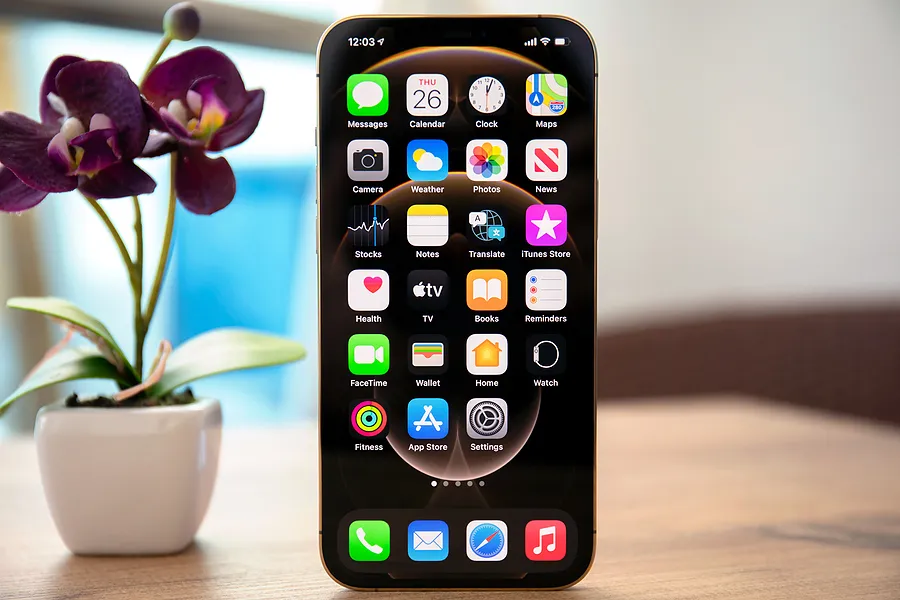
Are you wondering how to remove apps from iPhones? These days, there seems to be an app for everything. In 2023, the Apple App Store had 1.96 million apps available for download and the Google Play Store had 2.87 million. It’s easy to get excited about new apps and download them on your phone, but decide later that you no longer want them.
So what do you do when you don’t use the apps anymore? Having numerous apps at your fingertips can lead to storage congestion and a decline in device performance over time. If you're planning to sell your used iPhone it's crucial to uninstall iPhone apps to restore functionality.
How to Remove Apps from iPhone
There are many different ways to uninstall an app. Keep reading to see which works best for you!
Touch and Hold the Home Screen
The simplest method to uninstall iPhone apps is by tapping and holding on the home screen.
- Press and hold on your home screen.
- After a moment, your icons will shake, and a '-' will appear in the upper left corner of the app icons.
- Tap the '-' on the app you want to delete.
- Then click “delete app” on the popup
- Once done, tap 'Done' in the top right corner.
Touch and Hold the App
Another way how to remove apps from iPhones is to touch and hold the app.
- Touch and hold the app you want to delete on your home screen
- Options to “Edit Home Screen”, “Share App” and “Remove App” will pop up
- Tap on “Remove App” and then “Delete App”
- This will delete the app from your phone and remove the app from your home screen.
Uninstall iPhone Apps Through Settings
To free up storage and identify space-hogging apps, you can use the Settings app. However, this will not delete preinstalled apps.
- Swipe left on your home screen to open the App Library.
- Open the Settings app (gear icon).
- Navigate to General > iPhone Storage.
- Review the list of apps and their storage usage.
- Tap on any app you want to delete and select Delete App.
- Tap Delete App again to confirm.
Pro Tip: Consider the "Offload Unused Apps" option to automatically remove apps you haven't used in a while.
Diagnostics Software
For businesses dealing with used iPhones, using diagnostics software can be a time-efficient solution. Software like Phonecheck not only removes all apps but also wipes the phone's data, restoring it to factory settings. Phonecheck conducts extensive tests on the phone's components, providing a certification printout within minutes.
Why Should You Remove Apps from iPhone?
In addition to asking “How to remove apps from iPhones,” you might also wonder why you should remove apps. Here are some reasons why you should remove apps before you sell your used iPhone.
Performance Improvement
Numerous apps, even when not in use, consume storage and battery life. This can slow down your iPhone's performance. Deleting unused apps will result in an improvement in speed and battery efficiency.
Security Concerns
Apps store sensitive information like personal details and payment information. Deleting certain apps can protect your Apple account. However, simply deleting an app may not ensure the complete removal of your data. It is important to clear your iPhone and permanently delete apps before selling it. These extra measures will safeguard your personal and business-related data.
Advertising and Data Collection
Free apps often operate on advertising revenue, collecting data like location and Wi-Fi signals. Removing these apps not only enhances performance but also safeguards your privacy. If your phone contains sensitive company information, deleting apps is crucial before selling or returning the device. Free apps may compromise sensitive data security.
As you prepare to sell your used iPhone, uninstalling apps is essential for both performance enhancement and data security. Now that you know how to remove apps from iPhones you are one step closer to selling your used phone. It is important to make sure you delete the apps rather than just remove them from the home screen. Whichever method you choose, the goal is to create a seamless and secure transition for your device. To delete preinstalled apps, check out Apple’s guide to removing apps from iPhones.