
iPhone Not Charging: Common Fixes and When to Trust Diagnostics
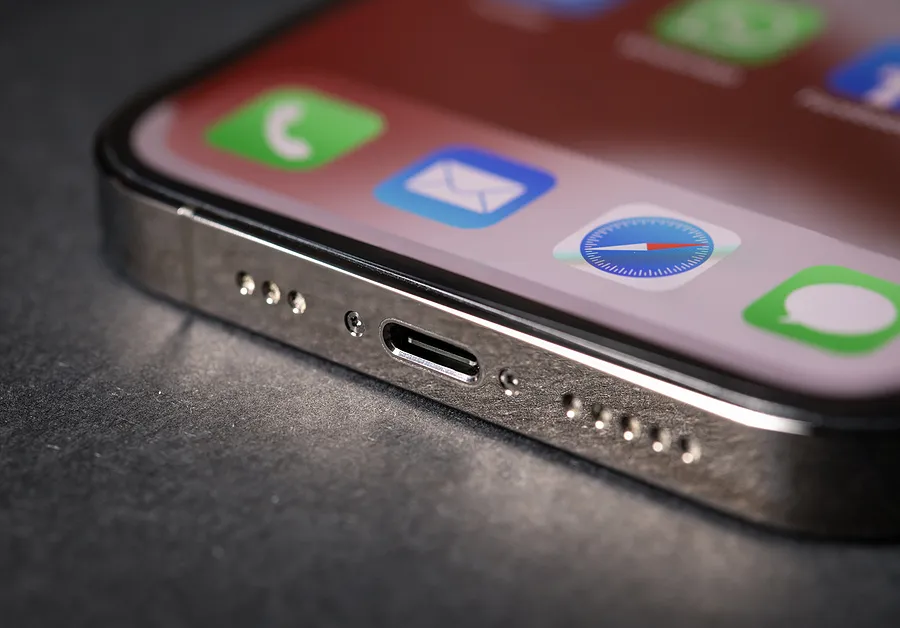
Few things are more frustrating than pulling out your iPhone only to realize it isn’t charging. No matter the situation, the dreaded iPhone not charging can throw everything off balance. While some issues have simple fixes, others point to deeper hardware or battery concerns.
Start With the Basics
If you find your iPhone not charging, don’t panic. The first step is to eliminate the simplest problems:
- Check your charging cable and adapter. Third-party or worn-out accessories are often the culprit. Apple-certified Lightning or USB-C cables usually perform better and last longer.
- Test the outlet or port. Try plugging into a different wall socket, power strip, or USB port on your computer.
- Restart your iPhone. A quick restart or force restart can clear temporary glitches that stop charging.
It may sound obvious, but a surprising number of “broken” phones turn out to have faulty cords or adapters.
Clean the Charging Port
Pocket lint, dust, and even tiny grains of sand can build up inside your iPhone’s charging port. Over time, this debris blocks the connection between the charging pin and your cable.
To safely clean the port:
- Power off the device.
- Use a dry toothpick, a small anti-static brush, or a can of compressed air.
- Avoid liquids or sharp metal objects that can damage the contacts.
This quick fix often solves the iPhone not charging mystery without a trip to the repair shop.
Look Out for Software Issues
Sometimes the problem isn’t physical at all. iOS updates occasionally address charging-related bugs, so it’s worth checking if your phone is running the latest version.
Go to Settings > General > Software Update to install any pending updates.
If the phone still refuses to charge, try resetting settings (without erasing your data) under Settings > General > Transfer or Reset iPhone > Reset.
For more advanced steps, Apple provides a support page that walks you through additional fixes if your iPhone or iPad won’t charge properly.
Battery Health and Hardware Red Flags
If your iPhone charges intermittently, loses power quickly, or only charges on wireless pads, the issue may be deeper:
- Battery degradation. iPhone batteries naturally wear out after 500–800 charging cycles. You can check your battery health in Settings > Battery > Battery Health & Charging.
- Damaged charging port. Frequent cable bending or water exposure can wear out the Lightning or USB-C port.
- Logic board issues. In rare cases, the charging circuit itself may fail, requiring professional repair.
At this stage, DIY fixes usually won’t cut it. That’s where diagnostics become essential.
Why Diagnostics Matter for Resellers and Refurbishers
For individual users, knowing why your iPhone is not charging helps you decide whether a repair or replacement is worth the cost. But for businesses that buy, sell, or refurbish used devices, the stakes are even higher.
A phone that doesn’t charge reliably isn’t just inconvenient—it’s a liability. Buyers expect transparency, and an overlooked charging issue can damage trust, hurt resale value, or lead to costly returns.
This is why professional testing and certification matter. Tools like Phonecheck let resellers quickly test charging systems, battery cycles, and port functionality across multiple devices. Once tested, a certified report gives both sellers and buyers confidence that the device meets its advertised condition.
Phonecheck’s bulk device testing process helps businesses screen dozens of iPhones at once, flagging potential charging failures before they reach the customer. That’s a level of assurance you can’t get from a quick “plug and see” method.
iPhone Not Charging After Water Damage
A special case worth mentioning is liquid exposure. Even a quick splash can corrode the delicate contacts inside a charging port. Some iPhones will refuse to charge if moisture is detected, flashing a warning on the screen.
If this happens:
- Do not force the cable in.
- Power off the device and let it air dry for at least 24 hours.
- Avoid using rice—it doesn’t work as well as advertised.
Water damage can lead to slow charging or no charging at all, and in these cases, diagnostic testing is important to confirm whether the phone is still reliable.
An iPhone not charging doesn’t always mean it’s time to replace your device. Sometimes it’s as simple as swapping out a bad cable or clearing lint from the port. Other times, it points to battery degradation, water damage, or deeper hardware issues.
For individual users, these troubleshooting steps can help stretch the life of your device. For resellers and refurbishers, though, proper diagnostics and certification are critical. Not only do they protect your reputation, but they also ensure that your customers get exactly what they expect.
Next time you encounter the dreaded iPhone not charging problem, start with the basics, escalate wisely, and rely on professional tools to verify device health.